Introduction
Castor is an IDE that can transform your natural language requirements into production-ready code. No need to arrive with a polished specification document — just describe what you're building to our AI agent, refine the requirements together, and watch your ideas take shape as code.
At the heart of Castor is bidirectional synchronization, also known as round-trip engineering. Any changes you make to your diagrams are automatically reflected in the code, and vice versa, keeping your documentation and code perfectly aligned throughout development.
Installation
Download Castor
Getting started is easy:
- Go to the Download page to install the IDE
- Open the downloaded file and follow the installation instructions for your operating system (Windows, macOS, Linux)
- Open Castor and start coding!
This guide will walk you through Castor's primary features by working with a real project. You'll learn how to use the DAM agent, the diagram editor, the code generation and the code synchronization features to enhance your development workflow.
Head to the Tutorial to get started.
Core Concepts
Understanding these core concepts will help you get the most out of Castor IDE.
The Castor Workflow
Castor follows a structured lifecycle from requirements to running code:
- Requirements — Write or generate
requirements.mddescribing what you're building - Design — Generate
design.mdwith architectural decisions and non-functional requirements - Analysis — Analyze requirements to extract symbols and generate domain and sequence diagrams
- Promote — Run
/promoteto convert analysis diagrams into code-generating ERD and Class diagrams - Code Generation — ERD and Class diagrams automatically generate framework-specific code
- Iterate — Edit diagrams or code; synchronization keeps everything aligned
Round-Trip Engineering
Round-trip engineering ensures that changes made in one artifact automatically propagate to related artifacts. In Castor:
- Code → Diagram: Add a property in a code file, and it appears in the corresponding ERD or Class diagram
- Diagram → Code: Add an entity or class in a diagram, and the corresponding code file is generated
This bidirectional sync applies to ERD (.erd.castor) and Class (.class.castor) diagrams.
Diagram Types
Castor uses four diagram types, split into two categories:
Analysis Diagrams
Generated automatically from requirement analysis. These capture your design intent:
- Domain Diagrams (
.domain.castor) — Business concepts and relationships. Do not generate code; used for requirements traceability. - Sequence Diagrams (
.seq.castor) — Interaction flows for use cases. Participate in downstream codegen context.
Code-Generating Diagrams
Created via /promote. These produce and sync with code:
- ERD Diagrams (
.erd.castor) — Data models that generate entity/model files. - Class Diagrams (
.class.castor) — Application architecture that generates services, controllers, and modules.
Intermediate Representation (IR)
The IR is Castor's central coordination model — an in-memory graph that connects requirements, diagrams, and code. When you save a diagram or code file, the IR is updated first, then sync handlers propagate changes to the other artifacts. A source identifier on each change event prevents infinite update loops.
Supported Frameworks
Castor currently supports code generation for:
- NestJS (TypeScript) — Entities, services, controllers, modules
- FastAPI (Python) — Models, routers, schemas
Your target framework is set in .castor/castor.config.json. See Configuration for details.
DAM Agent
The DAM Agent is Castor's primary AI assistant. It orchestrates your entire development workflow from requirements to implementation.
What the DAM Agent Can Do
- Gather Requirements: Transform natural language requirements into a structured
requirements.md - Create Design Documents: Generate
design.mdwith architectural decisions and non-functional requirements - Generate Diagrams: Create domain and sequence diagrams from analyzed requirements
- Promote to Code-Generating Diagrams: Convert domain/sequence diagrams into ERD and Class diagrams that produce code
- Configure Projects: Auto-create
.castor/castor.config.jsonwith your chosen framework - Answer Questions: Help you understand your codebase and suggest improvements
Using the DAM Agent
- Open the AI Chat panel via
View → AI Chat - Select
@DAMusing the agent selector - Choose your mode (see below)
- Type your prompt or slash command
Chat Modes
The dropdown next to the agent selector controls which context the DAM agent uses:
| Mode | Purpose |
|---|---|
| Requirements | Generate or refine requirements.md from natural language descriptions |
| Design | Generate or refine design.md using your requirements as context |
Chat vs Act
The Chat/Act toggle controls how the agent responds:
- Chat: The agent suggests changes and explains what it would do. You review before anything is modified.
- Act: The agent directly makes changes to your project files. Use this when running slash commands like
/promote.
Slash Commands
| Command | Description |
|---|---|
/promote |
Promote domain and sequence diagrams into code-generating ERD and Class diagrams, then trigger code generation |
/promote <concept> |
Promote specific concepts only (e.g. /promote Train Route) |
Typical Workflow
- Requirements: Set mode to Requirements, describe your project, and let DAM generate
requirements.md - Design: Switch to Design mode and ask DAM to generate
design.mdfrom your requirements - Analysis: In the Castor Panel, trigger requirement analysis (star icon) to generate domain and sequence diagrams
- Promote: In Act mode, run
/promoteto generate ERD and Class diagrams and trigger code generation - Iterate: Edit diagrams or code — synchronization keeps everything aligned
AI Chat Interface
The AI Chat is your primary interface for interacting with Castor's agents.
Opening the Chat
Access the AI Chat via View → AI Chat. The chat panel opens on the right side of the IDE.
Chat Interface Components
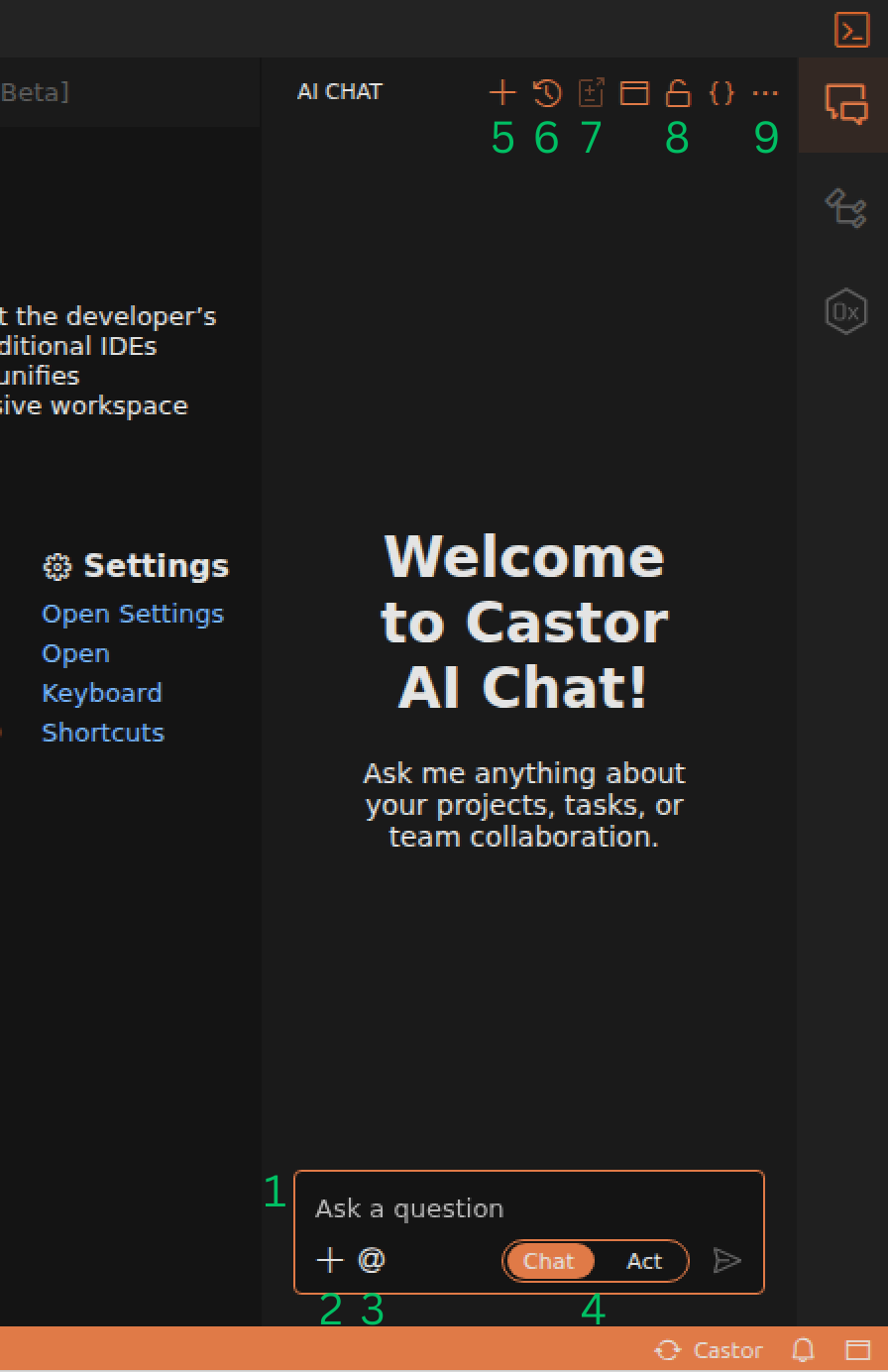
- Text Input Box: Where you type your prompts and requests
- Attach Elements to Context: Add files or code snippets to provide context for your request
- Agent Selector (@): Use the
@symbol to select which AI agent to interact with (e.g.,@DAM) - Chat/Act Toggle: Controls whether the AI suggests changes for your approval or acts directly
- New Chat Session: Start a fresh conversation with the agent
- Show Chat History: View your previous conversation sessions
- Summarize Current Session: Get a summary of the current conversation
- Turn Auto Scrolling Off: Disable automatic scrolling to the latest message
- More Actions: Open the agent settings, AI history, AI settings
Chat vs Act Mode
The Chat/Act toggle gives you control over how the AI responds:
Chat Mode
The AI suggests changes and explains what it would do. You can review and approve before any modifications are made. Best for understanding and learning.
Act Mode
The AI directly makes changes to your project files based on your prompt. Best when you're confident in your request and want faster results.
Agent Settings
Castor allows you to configure AI agents with your own API keys and choose different LLM providers for each agent. This gives you flexibility in how you interact with AI capabilities.
Accessing Agent Settings
To configure agent settings:
- Open the AI Chat panel via
View → AI Chat - Click the More Actions button (three dots) in the chat header
- Select Open Agent Settings
Adding Personal API Keys
You can use your own API keys from supported LLM providers to power the AI agents:
- Open the AI Settings panel, as shown in the gif below
- Select the model whose API key you want to configure (e.g., OpenAI, Anthropic, Google)
- In the API Key field, enter your personal API key from your chosen provider
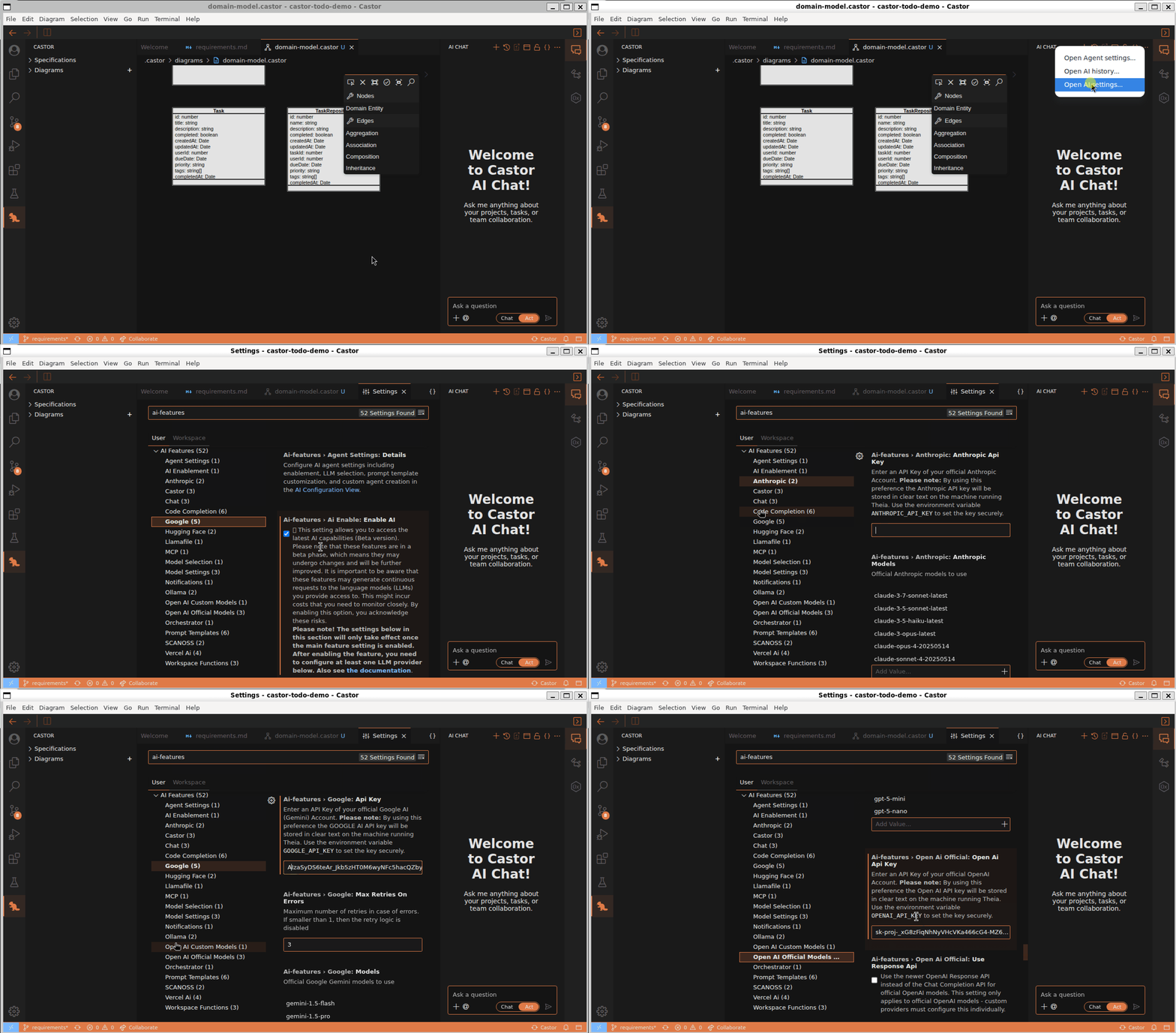
Supported Providers: OpenAI, Anthropic, Google (Gemini)
Switching LLMs Per Agent
Each agent can be configured to use a different LLM model:
- Open the Agent Settings panel
- Select the agent you want to configure
- Use the Language Model dropdown to select your preferred provider or select the default model
- The default model will be used if no specific model is selected and is listed below the dropdown
Castor Panel
The Castor Panel is your central hub for managing all project artifacts. It provides a tree view of your requirements, design documents, and diagrams.
Accessing the Castor Panel
- Look for the Castor Beaver icon in the Activity Bar (left sidebar)
- Click the icon to open the Castor Panel
- The panel displays a tree structure of your project artifacts
Panel Sections
- Requirements: Your
requirements.mdfile containing user stories, functional requirements, and acceptance criteria. Click to create the file if it doesn't exist yet. - Validation Schema: The
.castor/validation-schema.mdfile defining required fields and structure rules for your requirements and design documents. Customizable per project. - Design: The
design.mdfile with architectural decisions, technical specifications, and non-functional requirements. Can be generated from requirements using the DAM agent in Design mode. - Requirement Symbols: After requirement analysis, displays the extracted symbols (use cases, entities, etc.) from your requirements.
- Diagrams: All diagram files for your project — Domain (
.domain.castor), Sequence (.seq.castor), ERD (.erd.castor), and Class (.class.castor). Click a file to open it in the Diagram Editor.
File Icon Colors: An orange icon indicates the file exists, while a grey icon means it hasn't been generated yet.
Requirement Analysis
To trigger requirement analysis from the Castor Panel:
- Under Requirement Symbols, hover over Requirements
- Click the star icon beside it
- Castor extracts symbols, runs sync, and generates domain and sequence diagrams
After analysis completes, you can inspect extracted symbols in the Symbol Table tab in the bottom panel.
Context Menu Actions
Right-click on items in the Castor Panel for additional options:
- Delete File: Remove a file from your project
- Open in Editor: View the file in the appropriate editor
Requirements Management
Castor helps you capture, organize, and track requirements throughout your development process.
Creating Requirements
Using the DAM Agent
- Open AI Chat and select
@DAM - Set the mode dropdown to Requirements
- Describe your project requirements in natural language
- The agent creates a structured
requirements.mdfile with use cases, actors, goals, preconditions, and priorities
Manually
Click Requirements in the Castor Panel to create requirements.md, then write your use cases directly in the file.
Extracting from Code Comments
- Select text in your editor that describes a requirement
- Right-click and choose Extract Requirement Symbol
- Classify the requirement type (functional, non-functional, user story)
- The requirement is added to your requirements store and linked to the IR
Validation Schema
Castor uses a .castor/validation-schema.md file to enforce structure on your requirements and design documents. It defines required fields for each use case (such as Actors, Goal, Priority) and ensures consistency. You can customize these rules to fit your project.
Requirement Analysis
Once your requirements are written, you can analyze them to extract symbols and generate initial diagrams:
- In the Castor Panel, under Requirement Symbols, hover over Requirements
- Click the star icon to start analysis
- Castor extracts symbols from
requirements.mdand triggers sync
What Analysis Produces
- Symbols: Extracted use cases, entities, and relationships visible in the Symbol Table tab in the bottom panel
- Domain Diagram: A
.domain.castorfile capturing business concepts and relationships - Sequence Diagrams:
.seq.castorfiles capturing interaction flows for each use case
Sync Activity
After symbol extraction, Castor automatically runs sync. Open the Sync tab in the bottom panel to see events such as nodes and relationships being added across Requirements, Diagrams, and Code.
Diagram Editor
Castor includes a powerful visual diagram editor powered by GLSP (Graphical Language Server Protocol).
Diagram Types
Castor supports four diagram types, split into two categories:
Analysis Diagrams (Generated from Requirements)
These diagrams are created automatically when you analyze requirements:
| Type | File Extension | Purpose | Generates Code? |
|---|---|---|---|
| Domain | .domain.castor |
Captures business concepts and relationships | No — used for requirements traceability |
| Sequence | .seq.castor |
Captures interaction flows for use cases | Indirectly — participates in codegen context |
Code-Generating Diagrams (Created via /promote)
These diagrams are created when you run /promote and directly produce code:
| Type | File Extension | Purpose | Generated Files |
|---|---|---|---|
| ERD | .erd.castor |
Data modeling (entities, properties, relationships) | NestJS: src/<feature>/entities/<name>.entity.ts / FastAPI: app/<feature>/<feature>_model.py |
| Class | .class.castor |
Application architecture (services, controllers, modules) | NestJS: src/<feature>/<name>.service.ts, .controller.ts, .module.ts / FastAPI: app/<feature>/<feature>_router.py, _schema.py, _service.py |
Key distinction: Domain and Sequence diagrams support analysis and design. ERD and Class diagrams are the primary code-generating diagram types that sync bidirectionally with code.
Opening Diagrams
- Click on a diagram file in the Castor Panel
- The diagram opens in the visual editor with the canvas in the center
- The Palette appears on the right side with available elements
Diagram Elements
Node Types
- Class: Represents a class with properties and methods
- Interface: Represents an interface
- Package: Groups related classes and interfaces
- Enum: Represents enumeration types
- Entity: Represents a data entity with attributes (ERD diagrams)
Edge Types (Relationships)
- Association: Basic relationship between elements
- Aggregation: "Has-a" relationship (hollow diamond)
- Composition: Strong "owns" relationship (filled diamond)
- Inheritance: "Is-a" relationship (extends)
Editing Diagrams
- Add Elements: Select an element from the Palette, then click on the canvas to create it
- Select Elements: Click on any element to select it
- Move Elements: Drag selected elements to reposition them
- Edit Labels: Double-click on an element to rename it
- Add Methods/Attributes: Right-click on an element and use the context menu to add methods or attributes
- Create Connections: Use the Connection Tool from the palette, then click and drag from one element to another
- Delete Entities: Select "Enable deletion tool" in the diagram Palette, then click on the entity you want to delete
- Delete Attributes/Methods: Right-click on the attribute or method you want to delete and choose "Delete"
Diagram Synchronization
ERD and Class diagrams synchronize bidirectionally with your code when you save:
- Diagram → Code: Adding an entity or class in a diagram creates or updates the corresponding code file
- Code → Diagram: Adding a property or method in code updates the corresponding diagram element
Domain diagrams do not generate code. Sequence diagrams participate in codegen context but do not directly produce files.
Save your diagram with Ctrl+S / Cmd+S to trigger synchronization.
Synchronization
Castor keeps your code, diagrams, and requirements in sync automatically. This is the core of round-trip engineering — changes in one artifact propagate to related artifacts.
How Synchronization Works
- Change Detection: When you save a file, Castor detects what changed
- Event Queuing: The change is added to the sync queue with a source identifier
- IR Update: The Intermediate Representation is updated to reflect the change
- Propagation: Sync handlers propagate the change to other artifacts
- Loop Prevention: The source identifier prevents infinite update loops
Sync Handlers
Three specialized handlers process synchronization events:
- Code Sync Handler: Propagates changes to code files (TypeScript for NestJS, Python for FastAPI)
- Diagram Sync Handler: Updates GLSP diagram models
- Requirements Sync Handler: Updates requirements documents
Bidirectional Sync
Synchronization works in both directions for ERD and Class diagrams:
Diagram → Code
When you edit and save an ERD or Class diagram:
- Adding an entity or attribute generates or updates the corresponding code file
- Removing an element removes it from the code
Code → Diagram
When you edit and save a generated code file:
- Adding a property or method to an entity file (
*.entity.ts/*_model.py) updates the ERD diagram - Modifying a service, controller, or module (NestJS:
*.service.ts,*.controller.ts,*.module.ts/ FastAPI:*_service.py,*_router.py,__init__.py) updates the Class diagram
Note: Domain diagrams (
.domain.castor) do not participate in code sync. Sequence diagrams (.seq.castor) participate indirectly in codegen context.
Monitoring Sync Activity
Open the bottom panel to monitor synchronization:
- Sync tab: Shows sync events such as nodes and relationships being added, updated, or removed across Requirements, Diagrams, and Code.
- Symbol Table tab: After requirement analysis, displays the extracted symbols (use cases, entities) with their type and text matches.
Triggering Synchronization
Automatic Sync
- Sync triggers automatically when you save files (
Ctrl+S/Cmd+S) - The status bar shows "Syncing..." during synchronization
- Once complete, it displays "Synced" with success/failure counts
Manual Sync
- Press
Ctrl+Shift+P/Cmd+Shift+Pto open the Command Palette - Type Castor: Synchronize Code and Diagrams
- Or access via
Go → Sync with Diagrams
Auto-Save Warning: If auto-save is enabled in your editor settings, Castor will warn you. Auto-save can cause frequent synchronization events. For best results, disable auto-save and manually save when ready.
Code Generation
Castor generates production-ready code from your ERD and Class diagrams. The code generation pipeline reads your Intermediate Representation (IR) graph and produces framework-specific files.
Triggering Code Generation with /promote
The primary way to trigger code generation is through the DAM agent's /promote command:
- Open the AI Chat panel and select
@DAM - Enable Act mode
- Run:
/promote
/promote takes your analyzed domain and sequence diagrams and generates implementation-level ERD and Class diagrams, which then automatically trigger code generation via sync.
You can also promote specific concepts: /promote Train Route
Project Configuration
Before code generation can run, Castor needs to know your target framework. This is stored in .castor/castor.config.json. If it doesn't exist when you run /promote, the DAM agent will prompt you to choose a framework. See Configuration for details.
Supported Frameworks
NestJS (TypeScript)
Files are generated per feature under src/<feature>/:
src/<feature>/entities/<name>.entity.ts: Database entity definitions generated from ERD diagramssrc/<feature>/entities/<name>.repository.ts: Data access layer generated from ERD diagramssrc/<feature>/<name>.service.ts: Business logic layer with dependency injection generated from Class diagramssrc/<feature>/<name>.controller.ts: REST API endpoints with decorators generated from Class diagramssrc/<feature>/<name>.module.ts: Feature wiring and dependency registration generated from Class diagrams
FastAPI (Python)
Files are generated per feature under app/<feature>/:
<feature>_model.py: SQLModel data models generated from ERD diagrams<feature>_router.py: API route definitions generated from Class diagrams<feature>_schema.py: Pydantic schemas for request/response validation generated from Class diagrams<feature>_service.py: Business logic layer generated from Class diagrams<feature>_repository.py: Data access layer generated from ERD diagrams__init__.py: Feature module initializer
How Code Generation Works
- IR Analysis: The codegen service reads your IR graph
- Symbol Conversion: IR nodes are converted to code symbols
- Framework Conversion: Symbols are converted to framework-specific code based on your
castor.config.json - File Writing: Generated code is written to
src/<feature>/(NestJS) orapp/<feature>/(FastAPI)
Which Diagrams Generate Code?
Not all diagram types produce code:
| Diagram Type | File Extension | Generates Code? | Output |
|---|---|---|---|
| ERD | .erd.castor |
Yes | Entity/model files |
| Class | .class.castor |
Yes | Services, controllers, modules |
| Domain | .domain.castor |
No | Used for requirements traceability |
| Sequence | .seq.castor |
Indirectly | Participates in codegen context |
Code Analysis Features
Castor can also analyze existing code to extract:
- Classes with properties, methods, constructors, and decorators
- Interfaces with methods and type parameters
- Enums with members and values
- Access modifiers (public, private, protected)
- Import/export relationships
File Monitoring
Castor watches your project files for changes and triggers synchronization automatically.
Monitored Files
The file monitor tracks:
- TypeScript files (
.ts) for NestJS projects - Python files (
.py) under theapp/directory for FastAPI projects - File creations, updates, and deletions
TypeScript exclusions
- Test files (
*.test.ts,*.spec.ts) node_modules/,dist/,lib/
Python exclusions
- Any
.pyfile not under an/app/directory is ignored entirely node_modules/,dist/,lib/,/.venv/,/site-packages/
Status Bar Indicator
Look at the status bar at the bottom right of the IDE:
| Status | Meaning |
|---|---|
| Syncing... | Synchronization is in progress |
| Synced | All changes synchronized successfully |
| Stats | Shows success/failure/skipped counts |
Commands & Shortcuts
Quick reference for Castor-specific commands and keyboard shortcuts.
DAM Slash Commands
Run these in the AI Chat panel with @DAM selected and Act mode enabled:
| Command | Description |
|---|---|
/promote |
Promote domain and sequence diagrams into code-generating ERD and Class diagrams |
/promote <concept> |
Promote specific concepts only (e.g. /promote Train Route) |
Castor Panel Actions
| Action | Location | Description |
|---|---|---|
| Analyze Requirements | Star icon next to Requirement Symbols → Requirements | Triggers requirement analysis, extracts symbols, and generates domain and sequence diagrams |
| Create File | Click a greyed-out artifact in the Castor Panel | Creates .castor/requirements.md, .castor/design.md, or .castor/validation-schema.md |
Command Palette Commands
Access via Ctrl+Shift+P / Cmd+Shift+P:
| Command | Description |
|---|---|
Castor: Synchronize Code and Diagrams |
Manually trigger synchronization between code and diagrams |
Castor: Test ts-morph Integration |
Test code analysis on the currently open file |
Extract Requirement Symbol |
Create a requirement from selected text |
Menu Locations
| Action | Menu Path |
|---|---|
| Open AI Chat | View → AI Chat |
| Sync with Diagrams | Go → Sync with Diagrams |
| Ask DAM Agent (in editor) | Right-click → Ask DAM Agent |
| Extract Requirement | Right-click → Extract Requirement Symbol |
Keyboard Shortcuts
| Action | Windows/Linux | macOS |
|---|---|---|
| Save File (triggers sync) | Ctrl+S |
Cmd+S |
| Command Palette | Ctrl+Shift+P |
Cmd+Shift+P |
Configuration
Castor provides several configuration options to customize your experience.
Project Configuration (castor.config.json)
Each Castor project uses a configuration file at .castor/castor.config.json to control code generation behavior.
Framework Selection
The framework field determines which language and framework Castor generates code for:
{ "framework": "nestjs" }
{ "framework": "fastapi" }
| Framework | Language | Description |
|---|---|---|
nestjs |
TypeScript | NestJS backend with entities, services, controllers, and modules |
fastapi |
Python | FastAPI backend with models, routers, and schemas |
How It's Created
- Automatic: When you run
/promotefor the first time and no config file exists, the DAM agent prompts you to choose a framework and creates the file for you. - Manual: Create
.castor/castor.config.jsonyourself in the project root's.castor/directory.
AI Preferences
Access via File → Preferences → Settings and search for "castor":
- Subscription Tier: Displays your current subscription tier (Free or Premium)
- Enable Analytics: Opt-in for anonymous usage analytics
Language Support
Castor supports all programming languages for creating requirements, design documents, and diagrams.
Round-Trip Engineering features (code generation and synchronization) are currently available for the following frameworks:
| Framework | Language | Generated File Types |
|---|---|---|
| NestJS | TypeScript | src/<feature>/entities/<name>.entity.ts, src/<feature>/<name>.service.ts, src/<feature>/<name>.controller.ts, src/<feature>/<name>.module.ts |
| FastAPI | Python | app/<feature>/<feature>_model.py, app/<feature>/<feature>_router.py, app/<feature>/<feature>_schema.py, app/<feature>/<feature>_service.py, app/<feature>/__init__.py |
You can select your framework when creating .castor/castor.config.json (see Configuration).
We are actively working on adding support for more languages and frameworks in future releases.
Page updated: April 2026
Next: Tutorials →